It is a scenario playing out in millions of homes and offices right now: You just returned from a trip, eager to view your photos on your big monitor. You plug your iPhone into your Windows PC, drag the files over, and… nothing. No thumbnail. No preview. Just a generic white icon and a confusing file extension: .HEIC.
If you’ve found yourself frantically Googling 'how to open HEIC on Windows' or 'what is a HEIC file,' you are not alone. In fact, searches for these terms have skyrocketed recently as more users transition to newer iPhones and updated versions of iOS.
🚀 The 10-Second Fix
Don't have time to read the technical details? You can convert your HEIC files to JPG instantly and privately right now using our browser-based engine. Click here to open the Free Converter.
This isn't just a simple file error; it's a fundamental shift in how digital images are stored. It represents a clash between two massive tech ecosystems (Apple vs. Windows/Android). In this exhaustive guide, we’re going to tear down everything you need to know about the HEIC format.
We will cover its history, why it saves space, why it breaks your computer, how it compares to the 'Next-Gen' formats like AVIF, and the safest ways to fix compatibility issues without exposing your personal photos to the cloud.
Chapter 1: What is a HEIC File? (The Technical Deep Dive)
Let's start with the basics that most articles gloss over. What is the full form of HEIC?
HEIC stands for High Efficiency Image Container. It is the file extension used by Apple for images saved in the HEIF (High Efficiency Image File Format) standard.

It is important to distinguish between the Container (HEIF) and the Codec (HEVC). Think of a HEIC file like a digital envelope (the Container). Inside that envelope, you can put an image that has been folded up very tightly using a specific mathematical method (the Codec).
Unlike a standard JPEG, which is a 'flat' image, a HEIC container is dynamic. It can hold:
The Anatomy of a HEIC Container
Single Images: High-quality photos compressed with HEVC algorithms.
Image Sequences (Bursts): Multiple photos taken in rapid succession, stored in one file.
Live Photos: A short video clip synchronized with a still image.
Auxiliary Data: Depth maps (for Portrait mode blur), alpha channels (transparency), and HDR data.
Metadata: Non-destructive edit history. This allows you to crop a photo on your iPhone, save it, and 'undo' that crop months later because the original data is still in the container.
Chapter 2: The History – Why Did Apple Kill the JPEG?
For over 25 years, JPEG (Joint Photographic Experts Group) was the undisputed king of the internet. It was compatible with everything from a 1990s Game Boy to a modern Supercomputer. But JPEG has a problem: it is ancient technology.
JPEG was finalized in 1992. In technology years, that is the Stone Age. It was designed for an era of dial-up internet and low-resolution CRT monitors. It was never designed for the 48-megapixel sensors we carry in our pockets today.
The Storage Crisis
As iPhone cameras improved, file sizes ballooned. A single 12MP photo could easily hit 3MB to 5MB. A 4K video could eat up gigabytes in minutes. Users were constantly running out of storage, forcing them to delete memories or pay for iCloud.
In 2017, Apple made a bold, controversial move. They adopted the HEVC (High Efficiency Video Coding) standard from the video world (also known as H.265) and applied it to still images. This became HEIC.

The result was staggering: HEIC files offered better visual quality than JPEG at half the file size. Suddenly, a 64GB iPhone could hold twice as many photos.
Chapter 3: HEIC vs. JPG vs. PNG vs. WebP – The Showdown
Is HEIC actually better, or is it just proprietary Apple magic? Let's look at the hard data comparing the major formats.
The Ultimate Format Comparison Matrix
| Feature | HEIC | JPG | PNG | WebP | AVIF |
|---|---|---|---|---|---|
| File Size | 🏆 Tiny (~1.5MB) | Medium (~3.5MB) | Huge (~10MB) | Tiny (~1.8MB) | Tiniest (~1.2MB) |
| Color Depth | 16-bit | 8-bit | 24-bit+ | 8-bit | 10-bit+ |
| Transparency | ✅ Yes | ❌ No | ✅ Yes | ✅ Yes | ✅ Yes |
| Compression | Lossy / Lossless | Lossy | Lossless | Both | Both |
| Compatibility | ❌ Low | ✅ Universal | ✅ Universal | ⚠️ High | ⚠️ Moderate |
| Licensing | ❌ Patented | ✅ Free | ✅ Free | ✅ Free | ✅ Free |
Key Takeaway: HEIC is technically superior to JPG in every way except one: Compatibility. The fact that it is a patented, licensed format means that not every browser or operating system can legally support it for free.
Chapter 4: The Windows 10 & 11 Nightmare
This is likely why you are reading this article. You are a Windows user, and you can't see your photos. Why?
The Licensing Paywall
The technology behind HEIC (HEVC) is not open source. It requires royalty payments to a patent pool. Apple pays these fees for every iPhone sold. Microsoft, however, does not automatically include this license with every copy of Windows to keep costs down.
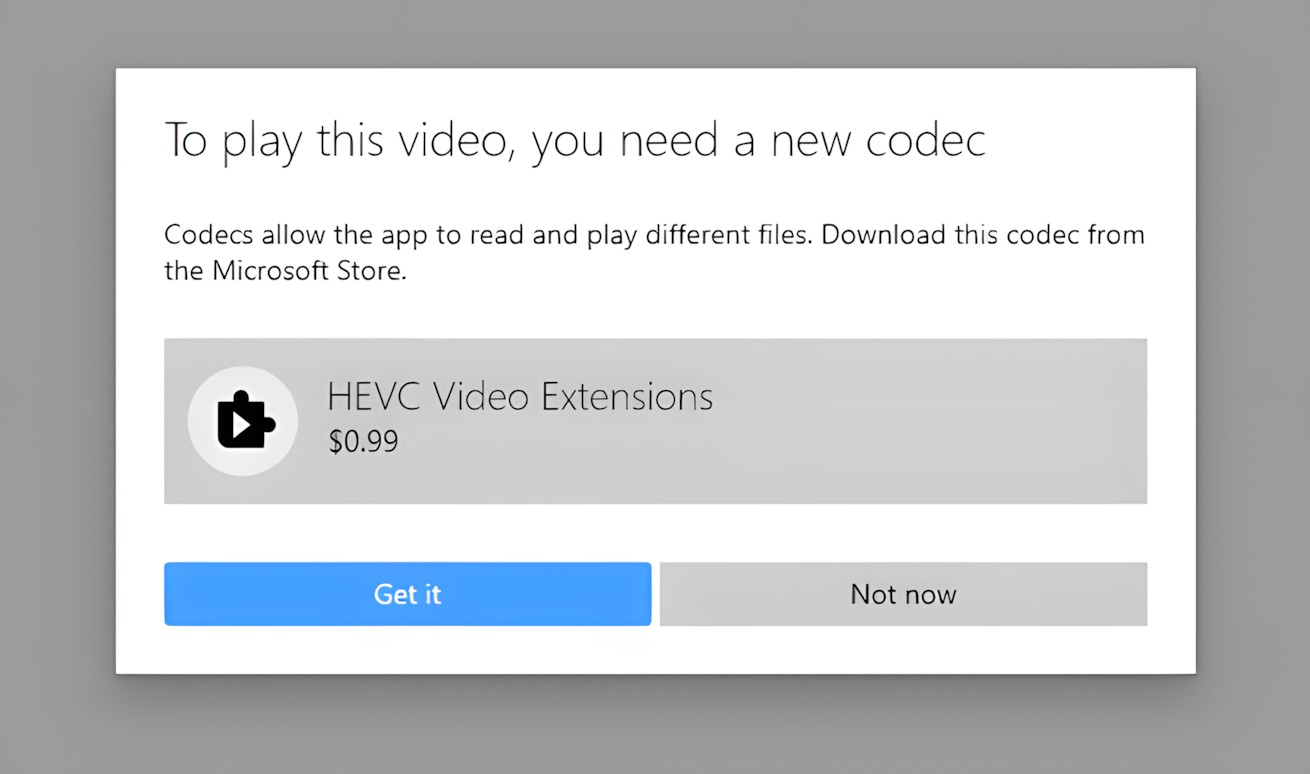
This leads to a frustrating user experience. You double-click a photo, and the Photos app launches only to display a screen saying 'The HEVC Video Extension is required to display this file', followed by a link to buy it for $0.99.
It gets worse. Even if you pay the dollar, the extension is notoriously buggy. Windows Updates often break it, or it fails to generate thumbnails in File Explorer, leaving you staring at a folder full of generic white icons.
Chapter 5: How to Convert HEIC Files (The Safe Ways)
When compatibility fails, conversion is the answer. But be careful—how you convert matters. Let's look at the three main methods.
Method 1: The Privacy-First Browser Converter (Recommended)
We built FastHEIC to solve the 'Privacy Gap' in file conversion. Traditional online converters work by uploading your file to a server, processing it, and sending it back. This is risky for personal photos.
FastHEIC uses WebAssembly (WASM). This is a cutting-edge web technology that allows us to run heavy code (like an image conversion engine) directly inside your Chrome, Edge, or Safari browser.
🛡️ Why Client-Side Matters
With FastHEIC, your photos never leave your device. You could literally load the page, turn off your Wi-Fi, and convert 100 photos. It is physically impossible for us (or hackers) to see your images because they are never uploaded to a cloud server.
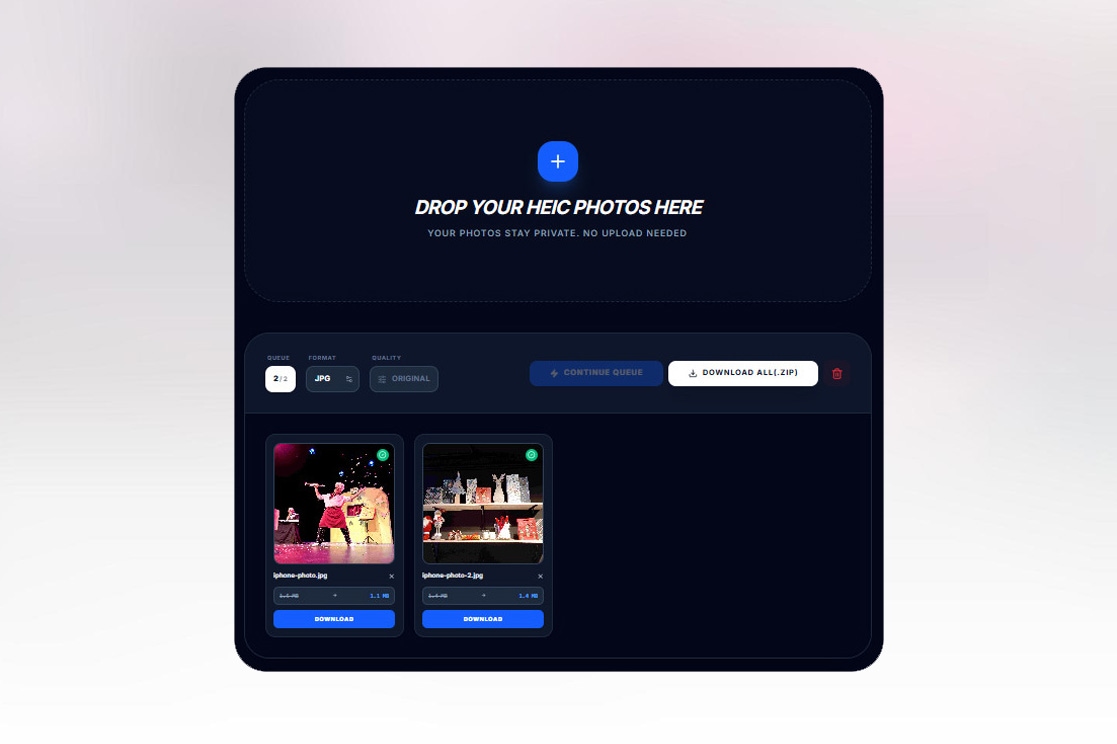
Step-by-Step Guide:
Scroll to the top of this page or visit FastHEIC.com.
Drag your folder of HEIC images onto the upload box.
Watch the blue progress bars. Notice how fast they are? That's your local CPU working.
Click 'Download All (.zip)' to get your converted JPGs in one neat package.
Method 2: The Google Drive / Photos Hack
If you don't mind waiting, cloud storage services often have built-in converters. If you upload a HEIC photo to Google Drive via your iPhone app, and then download it on a PC, Google sometimes converts it to JPG automatically (depending on your settings).
Downside: This consumes your cloud storage quota, requires a fast internet connection for uploads, and is very slow for bulk batches.
Method 3: Change iPhone Settings (Preventative)
If you are tired of dealing with HEIC, you can tell your iPhone to stop using it. But be warned: your storage will fill up twice as fast.
How to disable HEIC on iPhone:
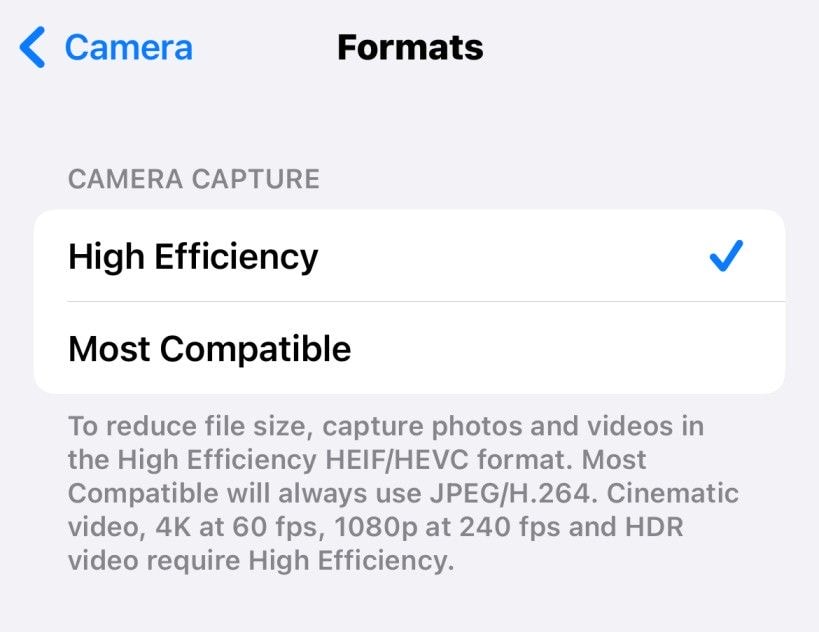
Open Settings on your iPhone.
Tap Camera > Formats.
Change the selection from 'High Efficiency' to 'Most Compatible'.
Your phone will now shoot in standard JPEG.
Chapter 6: The Android Struggle
It's not just Windows. Android users often struggle with HEIC files sent by iPhone friends via apps like WhatsApp, Telegram, or AirDrop clones.
Android 10 and Later: Native support is built-in. You should be able to view these files in Google Photos or the Samsung Gallery app without issues.
Android 9 and Older: These devices simply cannot read the HEVC codec. If you try to open a .HEIC file, you will get a black screen or an 'Unsupported File' error.
The Solution: FastHEIC is a PWA (Progressive Web App). This means if you visit our site on Android, you can tap 'Add to Home Screen' to install it like a native app. It gives you a free, offline-capable converter right on your phone without the ads found in the Play Store.
Chapter 7: For Web Developers & Designers
If you build websites, you might be tempted to upload that crisp HEIC image directly to your WordPress or Next.js site. Do not do this.
Browser support for native HEIC rendering is still poor. Chrome, Firefox, and Edge often require specific flags or simply don't render the image at all. Your users will see a broken image icon.
The SEO Play: HEIC to WebP
Instead of converting to JPG (which is old tech), convert your HEIC assets to WebP. WebP is supported by every modern browser and offers transparency (like PNG) and high compression (like JPG). FastHEIC allows you to select 'WebP' as your target format. This is the secret weapon for hitting 100/100 on Google PageSpeed Insights.
Frequently Asked Questions (FAQ)
Q: Does converting HEIC to JPG lose quality?
Technically, yes. Both HEIC and JPG are 'lossy' formats. However, FastHEIC uses high-quality conversion algorithms (set to ~90% quality) which means the visual difference is indistinguishable to the human eye. If you need 100% pixel-perfect accuracy, convert HEIC to PNG instead.
Q: Can I open HEIC in Photoshop?
Yes, but only if you are on a Mac or if you have installed the paid HEVC codecs on Windows. Without the OS-level codec, even Adobe Photoshop cannot decode the file.
Q: Is HEIC the same as HEIF?
Almost. HEIF is the standard (the rulebook). HEIC is Apple's specific implementation (the filename). It's like the difference between 'Facial Tissue' and 'Kleenex'.
Final Verdict: Embrace the Future, But Convert for Today
There is no doubt that HEIC is a technologically superior format. It creates beautiful, compact files that save us from buying phones with 1TB of storage. But until Windows, Android, and the open web fully embrace it, compatibility will remain a hurdle.
The smartest workflow is simple: Let your iPhone shoot in HEIC to save space. But when you need to share, print, upload, or archive, use a secure tool to bridge the gap.
Don't install sketchy software from the Microsoft Store. Don't upload your private moments to a random server in the cloud. Use the browser you already have.
Don't install sketchy software.
FastHEIC converts your files 100% in your browser. No uploads, no privacy risks, no cost.
Convert HEIC Images NowFree • Secure • Unlimited