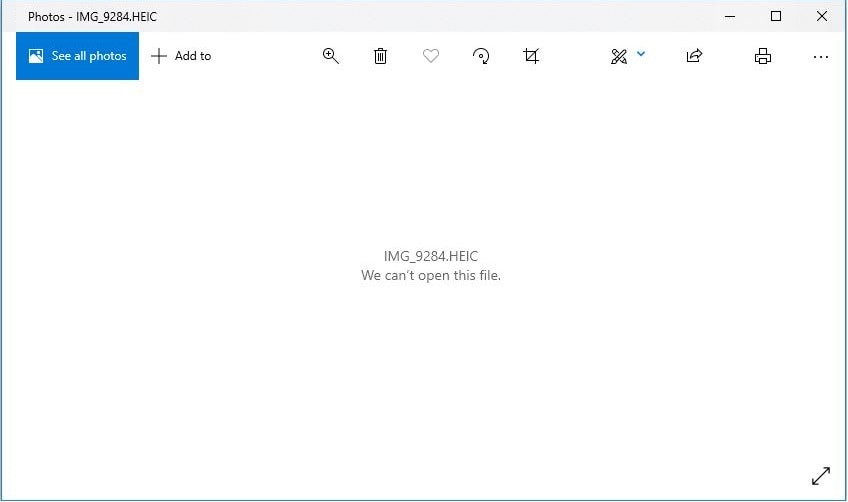
You just finished transferring ten gigabytes of photos from your iPhone to your Windows PC. The progress bar finished. No errors. You double-click the first image expecting to see a memory, but instead, Windows throws back a polite but annoying message: 'File not supported.' It feels like a mess you didn't ask for, and suddenly, you're the one stuck trying to solve it.
I’ve spent years fixing these types of mobile-to-PC headaches. The most frustrating part? The problem feels random. One computer opens the files; another refuses. Thumbnails appear for a second, then vanish into generic icons. You search for a fix and find a Microsoft Store page asking for ninety-nine cents for a codec. It feels like a tax on your own photos, and honestly, that's exactly what it is.
The Truth About the Fee
Windows can technically open HEIC files. The reason it doesn't is a licensing war. To use HEIC (HEVC), Microsoft has to pay royalties to patent groups like MPEG-LA. They decided to pass that cost directly to you instead of including it in the price of Windows.
If you need a fix right now without digging into system settings, using a browser-based HEIC converter is the fastest way to get your photos back into a usable format like JPG.
However, if you are determined to make Windows behave natively, or if you want to understand the deep technical reasons why this happens (hint: it involves 10-bit color depth and chroma subsampling), keep reading. We are going to break down every single method to fix this, ranked from 'Official' to 'Most Reliable'.
Method 1: The Codec Route (System-Wide Fix)
Open the Microsoft Store and search for 'HEIF Image Extensions'. Ensure it's the official one by Microsoft.
Check if you also need the 'HEVC Video Extensions'. This is the one that usually costs $0.99.
Restart your PC. This is crucial for Windows to rebuild the thumbnail cache.
Accept the reality: This method often breaks after Windows updates or graphics driver changes.
This is the 'official' way, but it's fragile. I’ve seen it work on one laptop and fail on an identical one. The dependency chain is weak. Windows Explorer relies on the codec, the thumbnail handler, and your GPU driver all talking to each other perfectly. If one updates and the other doesn't, you get black screens.
If you are a professional photographer or a developer who can't afford to have your technical guides fail mid-workflow, relying on a fragile codec is a bad strategy. You need a boundary.
Method 2: The Privacy Fix (Instant Conversion)
Use a local, browser-based tool like our HEIC to JPG converter.
Avoid 'cloud' converters. Your private photos shouldn't live on someone else's server just to be viewed.
Batch process your files. FastHEIC uses your own computer's RAM to do the work, so it's faster than uploading to the cloud.
Keep your original HEIC files for long-term storage (they are smaller), but use the JPGs for sharing and editing.
Let's talk about why this is often the superior choice. HEIC is a 'container' format. It can hold depth maps, transparency, and edit history. Windows Photo Viewer is a 'dumb' viewer. It often interprets this extra data incorrectly, showing you images that are rotated wrong or have weird color shifts. Converting to JPG flattens the image, ensuring it looks exactly the same on every device.
A Note on Privacy
Architecturally, FastHEIC is built differently. We don't have a 'delete after 1 hour' policy because your photos never hit our server in the first place. Everything happens inside your browser's sandbox. This is the only way to convert sensitive documents or family photos safely.
Method 3: The iPhone Setting (Prevention)
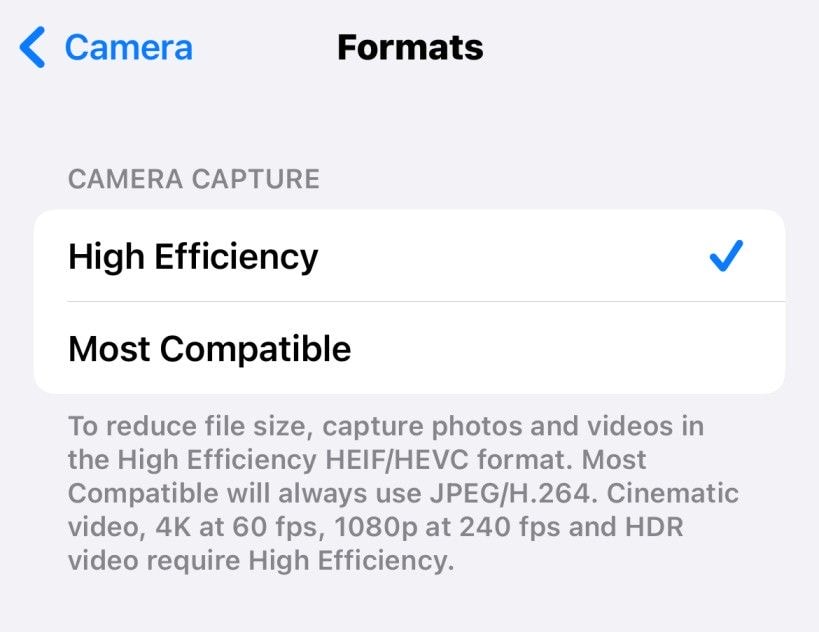
On your iPhone, go to Settings > Camera > Formats.
Select 'Most Compatible' instead of 'High Efficiency'.
Note: This will force your phone to shoot JPEGs, but you will lose the ability to shoot 4K at 60fps.
Go to Settings > Photos and ensure 'Transfer to Mac or PC' is set to 'Automatic'.
It can be confusing to know which version of Windows supports what. I've compiled a compatibility matrix based on my testing across different Surface and Dell devices.
Windows Version Compatibility Matrix
| Windows Version | Native Support? | Requires $0.99 Codec? | Reliability Score |
|---|---|---|---|
| Windows 10 (Pre-2018) | No | Yes (Mandatory) | Low |
| Windows 10 (21H2+) | Partial | Sometimes | Medium |
| Windows 11 Home | Partial | Yes | Medium |
| Windows 11 Pro | Better | Often Pre-installed | High |
Why is this so hard? It comes down to 'Chroma Subsampling'. JPEGs usually use 4:2:0 subsampling with 8-bit color. HEIC uses advanced predictive coding with up to 16-bit color. When Windows tries to read an HEIC file without the proper hardware acceleration (HEVC), it has to do it all in software. This is slow. If you try to open a folder with 1,000 HEIC files on an older laptop, you will watch your CPU usage spike to 100% just trying to generate thumbnails.
This is why the 'Device Unreachable' error happens. It's not your cable. It's your computer choking on the conversion process while the iPhone times out waiting for a response.
The fix for the 'Device Unreachable' mess? Set your iPhone to 'Keep Originals' in the Photos settings and move the raw HEIC files over. Once they are safely on your hard drive, use our bulk HEIC tool to make them readable. This bypasses the buggy Windows-to-iOS communication entirely.
After twenty years of fighting with file formats, my advice is simple: Don't let a licensing war stop you from seeing your photos. Use HEIC for the storage savings on your phone, but keep a reliable local PNG converter or JPG converter ready for the moment you need to step outside the Apple 'walled garden'.
Don't install sketchy software.
FastHEIC converts your files 100% in your browser. No uploads, no privacy risks, no cost.
Convert HEIC Images NowFree • Secure • Unlimited